With the extension Best
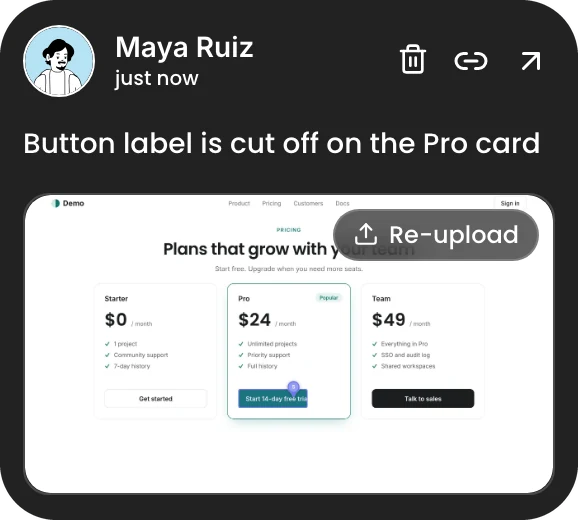 Screenshot attached
- Taken the moment you post, with your pin drawn on it.
- No question, no picker, on every page you review.
- It asks for no access when you install it.
 RMS - Screenshots · Chrome extension
A free companion to ReviewMySites. Leave a comment and the picture of what you were looking at goes with it: no picker, no sharing bar, and it keeps working from page to page.
Version 1.2.0 · Chrome 116 or later · No permission asked at install
What it does · three ways a picture is taken
Your clients never need it, and comments save either way. The extension only changes how the picture is taken, on your own desktop Chrome.
Screenshot attachedThe review bar shows you each one with a short animation, so nobody has to read this.
installed it already? the bar notices and skips straight to step 1 :)
Setup
From the Chrome Web Store. Installing shows no permission warning, because it asks for none yet.
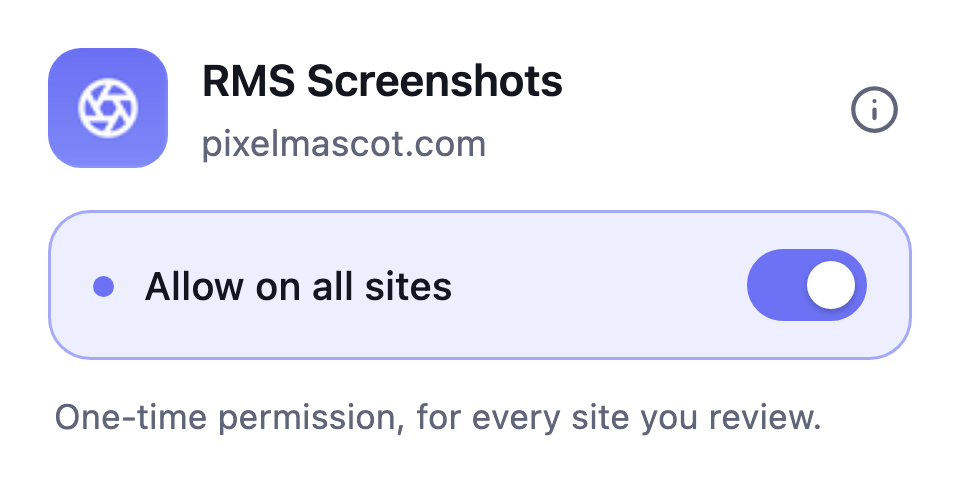
A setup tab opens with one switch. Turn it on and confirm Chrome’s dialog. You do this once, not once per site.
Click the puzzle icon in Chrome’s toolbar and pin RMS - Screenshots, so the switch and the dot are always in view.
Open a review link and leave a comment. The screenshot attaches itself. Tabs that were already open connect without a reload.
Why a switch in the extension? Chrome will not let a website grant an extension access to itself. Only you can, and doing it once stops Chrome asking on every new site.
Help
Click the extension’s icon and check that “Allow on all sites” is on. Without it Chrome refuses every capture. The permission is checked again before each screenshot, so switching it back on works straight away, with no reload.
Turning access on normally reaches every tab you already have open. Now and then Chrome keeps one out, usually a tab opened before the extension was installed. Reload that tab once and it connects.
ReviewMySites is not running on the page you are looking at. The switch still applies everywhere else: open a page with the review bar on it and the extension picks it up.
Chrome only lets an extension photograph a tab if it holds broad site access; the permission cannot be limited to one site. The access is optional, is not granted when you install, and the same switch takes it back.
The review bar on this page has screenshots switched on. It is off everywhere else, including on pages where access is granted but nothing is being reviewed.
It is an extension for Chrome on a computer, version 116 or later. On a phone there is no extension: take a screenshot first, then attach it with the Screenshot button in the comment box.
Turn the switch off to take back site access and keep the extension, or remove it entirely from chrome://extensions. Either takes effect at once.
Privacy
The extension collects, stores and transmits nothing of its own. It has no servers, no account and no analytics. It does not read, change or send the content of any page, and it never captures a tab other than the one you are looking at. The image goes to the ReviewMySites page that asked for it, and the extension sends it nowhere itself.
Still stuck? A person will help.
Send us a message from the contact page. Include your Chrome version, the site, and what the popup said.